
How I Organise My Procreate Brushes for Faster Workflow
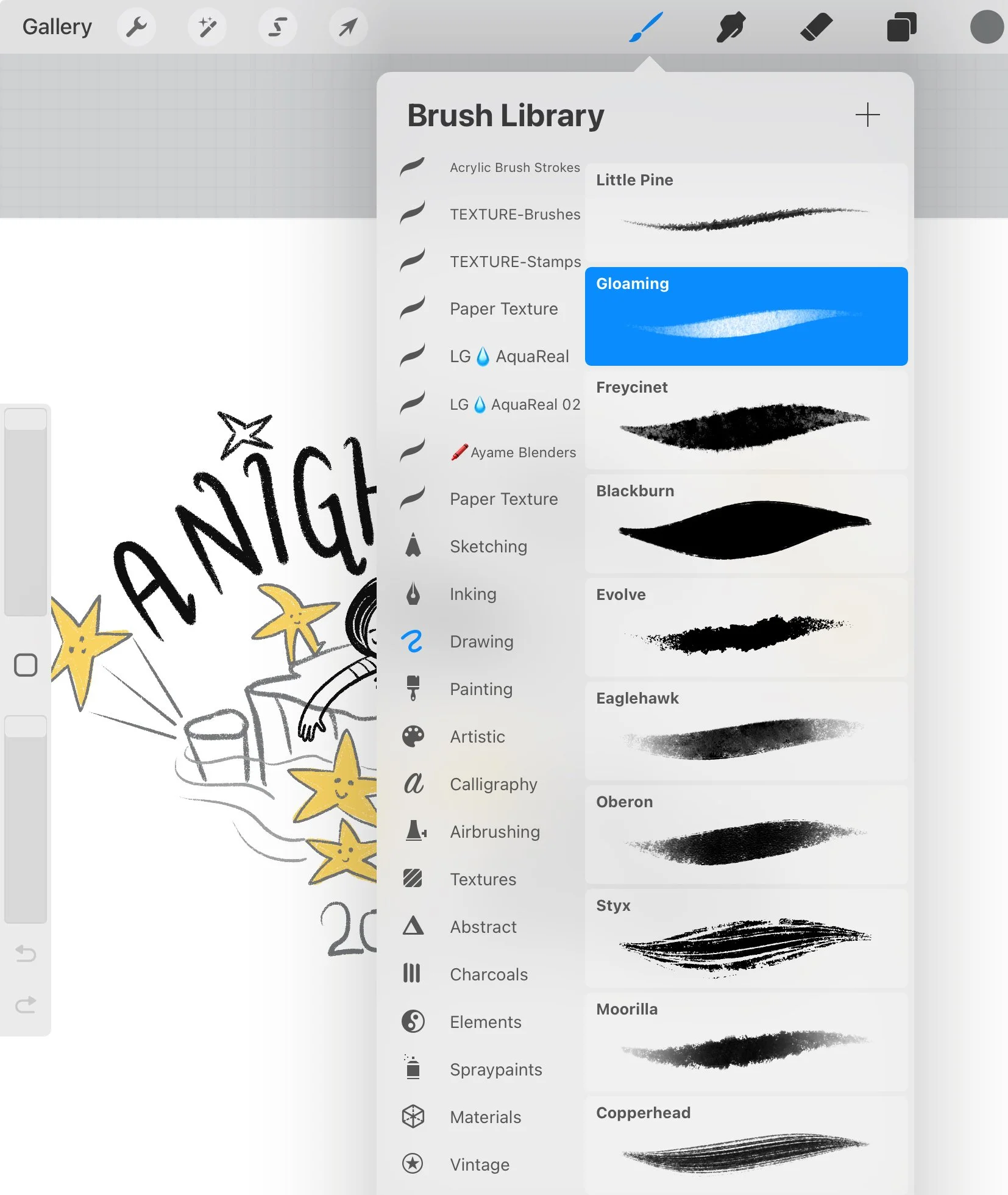
One of the things that took me the longest to figure out when I started using Procreate professionally was how to manage brushes. With hundreds (sometimes thousands!) of brushes available and so many I’ve created, it’s easy to get lost scrolling through endless lists mid-drawing. Over time, I developed a system that keeps my workflow smooth, my brushes easy to find, and my creative momentum uninterrupted.
Here’s how I organise my brushes for my kind of efficiency.
1. Group Brushes by Project
I start by creating a custom brush set for each project I’m working on. For example, if I’m illustrating a children’s book, I’ll have a set called “Verity” For my picture book ‘Verity finds her Voice. For a graphic novel I’ve been working on, I’ll have a set called “Clementine” (Watch this space!)
This way, everything I need for a particular project is in one place. No endless scrolling through irrelevant brushes, no hunting for that perfect texture—it’s all right there.
2. Clone Brushes for Consistency
I like to clone every brush I’m actively using in a project. Why? Because it means I can tweak size, opacity, streamline, or pressure settings for that project without affecting my default brushes. Each project has its “personalised” brush library, and I know that using a cloned brush keeps my workflow consistent.
3. Keep Brushes in project Folders
Within each project set, I create folders or subcategories:
Scribbles – All of my own personal sketches
Books – under the name of the project (Sometimes untitled until the project is official!)
Templates
Complete art – All of my own art pieces I have finished.
This structure makes it easy to jump between drawing stages without wasting time hunting through the entire brush library. Sometimes, even my ‘recent’ folder can’t save me!
4. Regularly Update
I’m not afraid to remove brushes I don’t use. Every few months, I go through each project set and move brushes to unused folders that haven’t been touched in a while. I also update cloned brushes if I discover a better setting. It keeps each set lean, useful, and uncluttered.
5. Benefits I’ve Found
Faster workflow: I can focus on drawing rather than searching for the right brush.
Consistency: Using cloned brushes for a project ensures line quality, textures, and colours stay uniform.
Less stress: Everything is organised and predictable—I know where to find my tools instantly.
And yes!
Organising brushes might seem like a small detail, but for me, it’s been a huge productivity booster. Procreate is a flexible tool, but it’s easy to get lost in all the options. By grouping brushes by project, cloning them, and keeping folders tidy, I’ve turned a chaotic library into a smooth, fast workflow—and the more organised your brushes, the more time you have to do what you really love: creating.
Hey, there! I’m Jasmine Berry, a freelance illustrator based in sunny Perth, Western Australia. Most days you’ll find me sketching away on my iPad or surrounded by pencils and cats, chasing new ideas. I like to think of myself as eternally optimistic—always seeing the fun, the colour, and the possibility in every project I take on. Send me a message if you would like to collaborate on a project.